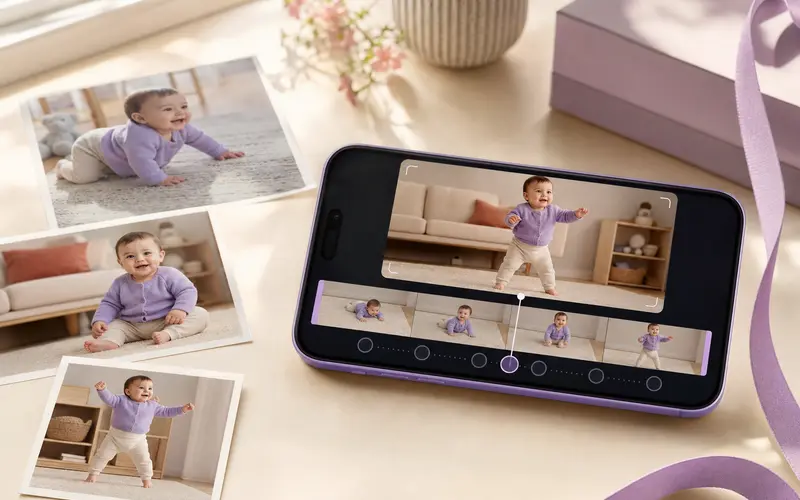

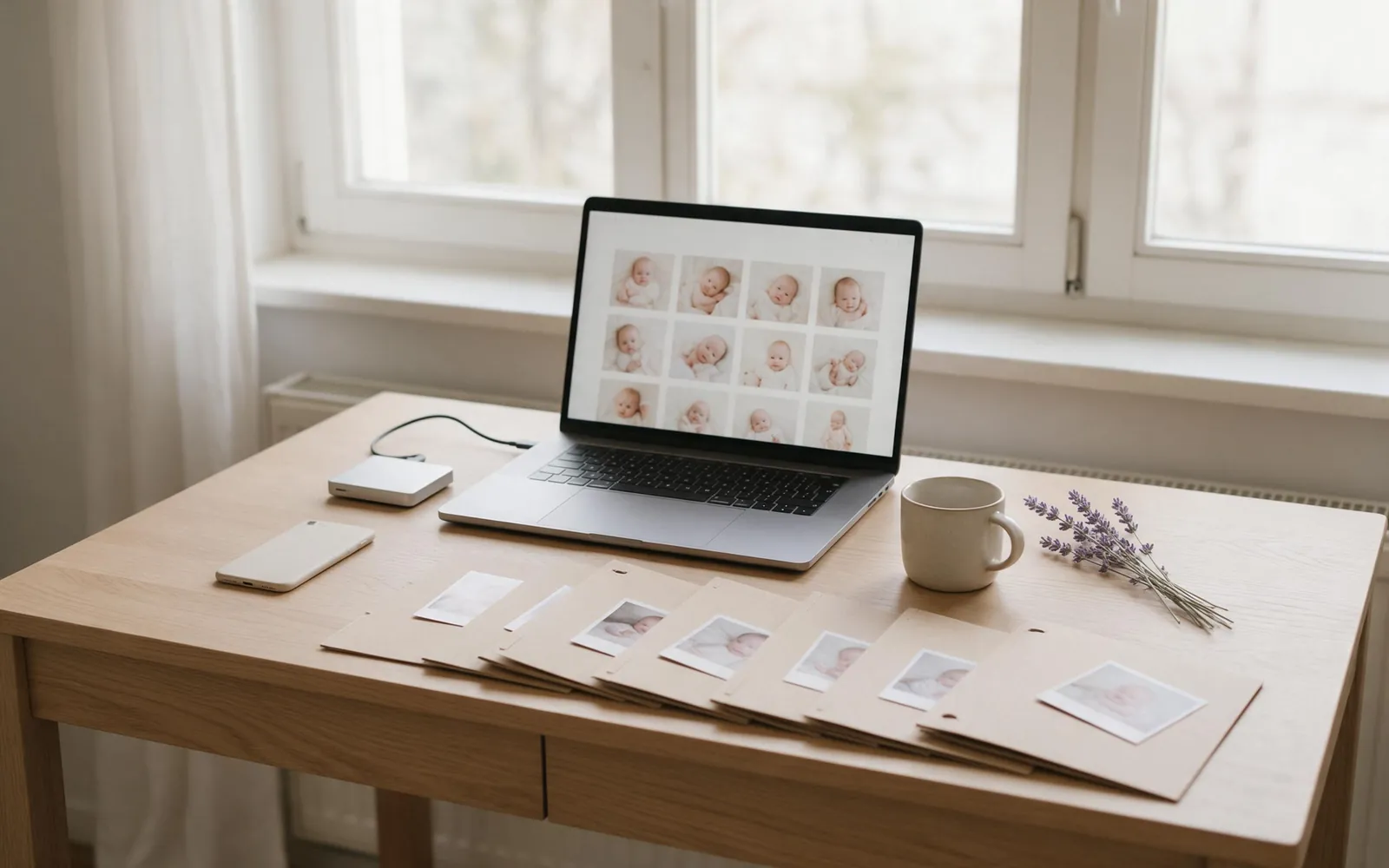
Baby photos tend to live in five places at once: your phone, your partner's phone, a family chat, a grandparent's tablet and a cloud account nobody remembers the password for. Everything feels safe until a phone goes in the bath, or a sync quietly deletes the wrong album.
This guide shows how to organize baby photos into a simple month by month structure and how to back them up with the 3-2-1 approach, using tools most iPhone families already have. None of it is complicated. It is mostly about deciding once, then repeating a small routine.
Why baby photos get lost
Photos rarely disappear in dramatic ways. The common stories are ordinary:
- A lost, broken or stolen phone with no copy anywhere else.
- Sync mistaken for backup. You delete a photo on the iPad to free space, and iCloud deletes it from the phone too.
- Running out of storage and removing "old" videos in a hurry.
- Only compressed copies. The best photo of the first smile exists only as a small version sent through a messaging app.
- A forgotten account. An old email, an expired cloud plan, a computer that stopped turning on.
Sync is useful. It keeps your library the same on every device. But sync copies deletions as faithfully as it copies new photos. A real backup is a separate copy that does not change when you make a mistake.
Step 1: choose one home for the originals
Before organizing anything, decide where the complete, full-quality collection lives. For most iPhone families this is one photo library, usually the phone of the parent who takes the most photos, synced with iCloud Photos.
Then bring everything into it:
- Your partner's photos. An iCloud Shared Photo Library lets up to six people contribute to one library at full quality, or you can AirDrop the favourites across once a month.
- Photos from grandparents and friends. Ask for originals through AirDrop or a shared link rather than a messaging app.
- Screenshots and saved chat images. Keep only the ones that matter, and look for the original if it exists.
One home means one place to organize and one place to back up.
Step 2: organize by month
A baby's first years are naturally counted in months, so your folders can be too. On a computer or external drive, create one folder per month and name it with the year first, then the month. This makes folders sort in the right order on any system.
| Folder name | What goes in |
|---|---|
| 2026-03 Month 00 | Birth and first weeks |
| 2026-04 Month 01 | Everything from that calendar month |
| 2026-05 Month 02 | Everything from that calendar month |
| 2027-03 Birthday 1 | The party, the slideshow, the cake |
| Series Same Spot | Your same-angle photo series, in date order |
| Videos Exported | Finished time-lapses and slideshows |
A few small rules keep it tidy:
- Year and month first, always (2026-03, not March 2026). Alphabetical order then equals time order.
- Do not rename individual photos. The file dates and camera data already keep them in order.
- Keep finished videos separate from the raw photos, so you can find them in seconds.
Inside the Photos app itself you can mirror this with albums, but the folder structure is what you copy to your backup drive.
Step 3: the 3-2-1 backup in plain terms
The 3-2-1 rule is an old standard from professional data storage, and it translates well to family photos:
- 3 copies of every photo you care about.
- 2 different kinds of storage, for example a cloud service and a physical drive.
- 1 copy away from home, so a fire, flood or burglary cannot take everything.
A realistic family version looks like this:
- Copy one: your iPhone photo library.
- Copy two: iCloud Photos, which is off-site and updates automatically.
- Copy three: a computer or external drive at home, updated once a month or at least a few times a year.
For extra safety, keep a second drive at a grandparent's house and swap it every few months, or use a second cloud service. External drives do fail, so plug yours in once a year, open a few photos from different years, and replace it every few years.
iCloud Photos, shared albums and what each one keeps
These three Apple features sound similar but do very different jobs.
iCloud Photos keeps your whole library in sync across your devices at full quality. In Settings, under your name, iCloud and then Photos, you can choose to optimise iPhone storage (smaller versions on the phone, full-resolution originals in iCloud) or to download and keep originals on the phone. Deleted items stay in the Recently Deleted album for about 30 days, then they are gone everywhere.
iCloud Shared Photo Library lets up to six people share one library at full quality. It is the best option for two parents taking photos of the same child, but it is still sync, so a deletion by one person removes the photo for everyone.
Shared Albums are made for sharing with family. They are easy for grandparents to join and comment on, but photos are stored at reduced resolution and videos at up to 720p. Think of shared albums as a window for relatives, not a vault.
Export originals from iPhone and Mac
To make copy number three, you need the full-quality files on a computer or drive.
On a Mac: open Photos, go to its settings, choose iCloud and select the option to download originals to this Mac (this needs enough disk space). Then select a month of photos, choose File, Export and the option to export the unmodified original. Save them into the matching month folder.
On Windows: install Apple's iCloud for Windows, turn on Photos and let it download your library, then copy the month folders to your drive.
Without a computer app: sign in at iCloud.com, open Photos, select a batch and download it. Look for the download option that keeps the unmodified originals rather than the most compatible version.
A note on formats: iPhones save photos as HEIC by default. HEIC is high quality and space efficient, and modern computers open it without trouble. If you want JPEG copies for an older device, export a second set, but keep the originals as the master copy.
When you change phones
A new iPhone is the moment photo libraries most often go missing, usually because the old phone was reset too quickly.
- Check iCloud Photos is on and fully uploaded on the old phone before you start.
- Update your computer or drive backup one last time.
- Set up the new phone with Quick Start or from an iCloud backup, signed in with the same Apple Account. Apple's option to prepare for a new iPhone, under General and then Transfer or Reset iPhone, can give you temporary extra iCloud storage for the move.
- Wait until the new phone shows the whole library. Scroll back to the first months and open a few videos.
- Only then erase the old phone.
Apps that keep their data in your iCloud work the same way. TinyLapse, for example, keeps albums on the device and in your own private iCloud database, which the people who make the app never see, so signing in to the new phone with the same Apple Account and iCloud turned on is what lets your series come with you. Open the app on the new phone and check the series is complete before you erase the old one. The Guide tab's card on keeping the series safe gives the same advice as this article: sync is not a backup, so once or twice a year copy your exported video and your original photos somewhere separate.
A 15 minute monthly routine
Once the backlog is sorted, keeping it tidy takes about a quarter of an hour at the end of each month:
- Gather the month's photos from your partner, grandparents and any chats into the main library.
- Delete obvious duplicates and blurry frames.
- Export the month's originals into a new folder, like 2026-10 Month 07.
- Copy the folder to your external drive.
- Save any finished videos, such as a first year time-lapse video or a first birthday slideshow, into the videos folder.
Set a gentle monthly reminder for it, the same way you might for a monthly photo in the same spot and from the same angle.
A final thought about privacy. A well organized archive makes it tempting to share more, but the safest place for most baby photos is the family library you just built. Our guides to sharing kids' photos online and to uploading baby photos to AI tools cover what to think about before a photo leaves it, and you can read how albums stay private in our app in the privacy section. If you want a photo series that stays in date order in your own iCloud, you can find TinyLapse on the App Store.